
Social Share Image Design: How to Design Open Graph Images

How do you design a social share image?
Design a social share image by making one clear, wide graphic for each important page, sized to the platform’s recommended ratio, with the key words and logo kept inside a central safe area, and then telling platforms to use it with Open Graph tags. When someone pastes your link into a post or a message, that image is what people see first. A good one is readable at thumbnail size, matches your brand and describes the page honestly.
This guide covers what Open Graph tags do, sizes and safe areas, layout and typography, templates, alt text and testing. Pros Inc designs brand identities, websites and marketing graphics for small businesses from our office in San Diego, and we build share image templates for many of the sites we work on. Technical details come from the Open Graph protocol, LinkedIn and Google documentation, read as of October 2026.
What a social share image is
A social share image, often called an Open Graph image or OG image, is the picture that appears in the link preview card when a page is shared on social networks and in many messaging apps. The card usually shows the image, the page title, a short description and the site name.
Without a share image, platforms may pick a random image from the page, crop your logo badly or show no image at all. A purpose-built image gives you control over that first impression.
The Open Graph tags behind the image
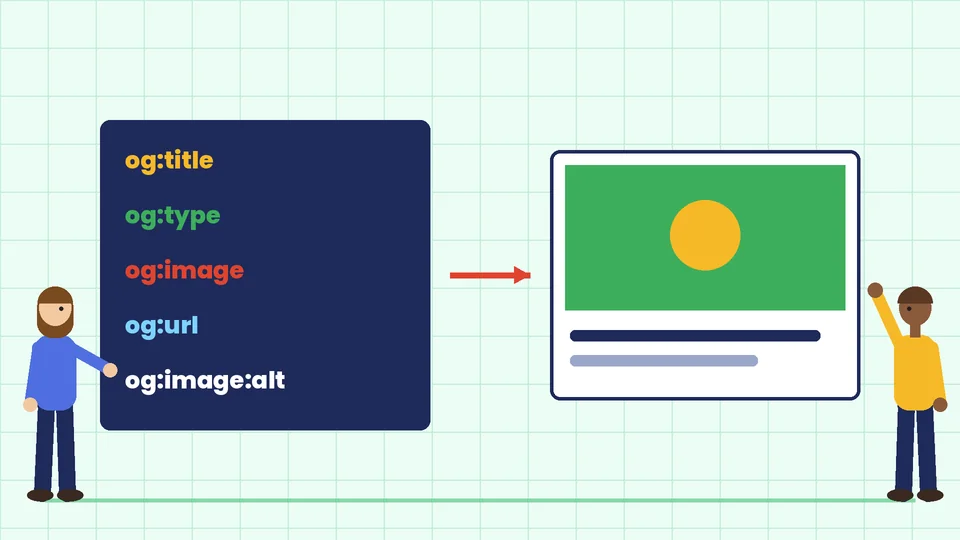
The Open Graph protocol defines the meta tags that tell platforms what to show. It lists four required properties for every page:
- og:title. The title of the page as it should appear in the preview.
- og:type. The type of object, such as a website or an article.
- og:image. The address of the image to show.
- og:url. The canonical address of the page.
Optional properties include og:description, a one to two sentence description, and og:site_name, the name of the wider site. For images, the protocol also defines og:image:width, og:image:height, og:image:type and og:image:secure_url, plus og:image:alt. The protocol describes og:image:alt as a description of what is in the image, not a caption, and says that if a page specifies og:image it should also specify og:image:alt.
Platforms set their own rules on top of the protocol. LinkedIn’s guidance on sharing links lists og:title, og:image, og:description and og:url as the tags that must exist for its previews.
Most site owners don’t write these tags by hand. SEO plugins and site builders usually include fields for a social title, description and image on each page. The designer’s job is to supply the image and make sure the page has a good title and description to go with it.
Size, ratio and file format
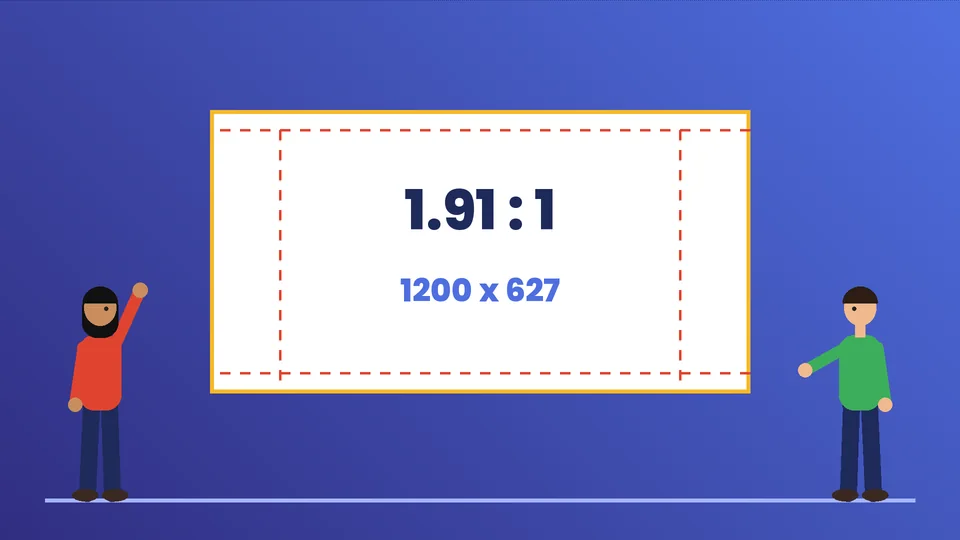
Each platform publishes its own image specifications, and they change, so check the current documentation for every network that matters to you. LinkedIn’s guidance, for example, lists:
- A maximum file size of 5 MB.
- Minimum image dimensions of 1200 by 627 pixels.
- A recommended ratio of 1.91:1 for horizontal images.
A wide image at roughly 1.91:1 is a common starting point because many platforms show link previews in a wide format, but confirm the sizes for X, Facebook and any other network you rely on in their own documentation before you build templates.
For file format, Google’s image SEO guidance lists BMP, GIF, JPEG, PNG, WebP, SVG and AVIF as supported formats for Google Search. Social platforms vary in which formats they accept for previews, so JPEG or PNG is the safe choice for share images unless the platform’s documentation confirms others. Keep file sizes small so previews load quickly.
Design for the safe area
Platforms crop and scale share images differently, and some show them small in feeds or chat apps. Plan for that:
- Keep text and logos in the center. Treat the outer edges as a margin that may be cropped. A dashed safe-area guide in your template helps.
- Use few words. A short headline of a handful of words reads at thumbnail size. Long sentences don’t.
- Use large, bold type. Thin or small type disappears when the card is scaled down. Our guide to brand fonts covers choosing typefaces that hold up at small sizes.
- Keep contrast high. The W3C contrast guideline asks for at least 4.5:1 for normal text and 3:1 for large text. It’s a web content standard, but it’s a useful bar for text on share images too.
- Don’t repeat the title word for word. The platform usually shows the page title under the image, so the image can carry a shorter hook, a visual or a key number instead.
Layout ideas that work
A few layouts cover most needs:
- Headline plus illustration. A short title on one side and a simple illustration or product shot on the other.
- Bold color block. A brand color background with a large headline and a small logo in a corner.
- Product or person in focus. One clear image with minimal text, useful for product pages and team pages.
- Data point. One large number with a short label, which works well for reports and infographics.
Whichever layout you choose, include your logo small and in the same spot every time, so people recognize your brand in a busy feed. Our guide to logo file formats explains which versions to keep ready for this kind of use.
Build a template system
Most sites need share images for many pages. A template system saves time and keeps everything consistent:
- Set a master size based on the platforms you care about most, with a safe-area guide.
- Define two or three layouts, such as one for blog posts, one for product or service pages and one for announcements.
- Lock brand elements. Logo position, fonts and background colors from your brand color palette stay fixed.
- Leave editable slots for the headline and an image.
- Export at the right size and format with sensible file names.
Your share images should feel like the rest of your marketing. If you already run display campaigns, the same visual system used in your banner ad design can carry over, and your share images should look like the landing pages they point to.
Write alt text for the image
The Open Graph protocol’s og:image:alt property lets you describe the image for people who can’t see it. Describe what is in the image, such as “Illustration of a shopping cart with the words Holiday Sale,” not a caption or a list of keywords. Google’s image guidance also stresses descriptive alt text for images on the page itself. Our website accessibility guide covers alt text in more depth.
Test before and after you publish
- Preview the card. Several platforms offer link preview or inspection tools. Paste the page address and check the image, title and description.
- Check on a phone. Many shares are viewed on small screens, so view the card in a mobile feed and a messaging app.
- Refresh cached previews. Platforms often cache previews, so after changing an image you may need to use the platform’s tool to fetch it again.
- Check the basics. Confirm the image address works, the image isn’t blocked from crawlers and the og:url matches the page’s canonical address.
Social share image checklist
- Every important page has its own share image.
- Size and ratio checked against each platform’s current documentation.
- Key words and logo inside a central safe area.
- Short headline, large type and strong contrast.
- Brand colors, fonts and logo used consistently.
- og:title, og:type, og:image and og:url set, plus og:description and og:image:alt.
- Small file size in a widely supported format.
- Preview checked on desktop and mobile after publishing.
Frequently asked questions
What size should a social share image be?
What is an Open Graph image?
Which Open Graph tags do I need?
Why is the wrong image showing when I share my link?
Should I put text on a share image?
Do share images need alt text?
Get share images that match your brand
A social share image is often the first thing people see of your business, before they ever visit your site. Size it for the platforms you use, keep the message in the safe area, set the right tags and test the preview. If you want a share image template system for your website or a full refresh of your brand graphics, contact Pros Inc at 715 J St #200, San Diego, CA 92101, or call (858) 652-8920.