
App Icon Design: Sizes, Safe Zones and Design Tips
What makes a good app icon design?
A good app icon design is one simple, recognizable shape on a clean background that still reads at the smallest size a phone displays it. It reflects the brand, avoids text and fine detail, and follows each platform’s rules for size, shape and effects. Apple and Google both apply their own masks, corners and shadows, so you supply a full square design and let the system handle the rest.
This guide covers how to choose an icon concept, Apple’s and Google’s specifications, the safe zones for adaptive icons, color and dark mode, how an app icon relates to your logo and favicon, and a checklist before you submit. Pros Inc designs logos and brand identities for small businesses from our office in San Diego, and an app icon is often the smallest and most-seen version of a brand. The specifications come from Apple’s Human Interface Guidelines and Google’s Android and Google Play documentation, read as of October 2026. Both companies update these pages regularly, so check them again before you submit.
Start with one idea
Apple’s app icon guidelines recommend embracing simplicity: find a concept or element that captures the essence of your app, make it the core idea and express it with a minimal number of shapes. That is good advice on any platform.
Ways to find the idea:
- Use a mark from your logo. If your logo has a symbol, it may work as the icon with small adjustments.
- Use a single letter. Apple notes that a mnemonic, such as the first letter of the app’s name, can help people recognize the app.
- Show what the app does. A simple object that represents the main task, drawn as a graphic, not a photo.
Sketch several ideas at small sizes before you refine any of them. An idea that only works large won’t work on a home screen.
What to avoid in an app icon
Apple’s guidance lists several things that tend to hurt icons:
- Text. Apple says text in icons doesn’t support accessibility or localization, is often too small to read, and is usually redundant because the app name appears nearby. Avoid words like “Watch,” “Play” or “New.”
- Photos. Apple prefers illustrations to photos, because photos are full of detail that doesn’t work at small sizes or in different appearances.
- Copies of interface elements or screenshots. Don’t just replicate standard controls or use app screenshots.
- Apple hardware. Apple says its products are copyrighted and can’t be reproduced in app icons.
- Extremely thin lines and sharp corners, which lose detail at small sizes.
Google Play’s icon design specifications add rules about misleading elements. As of October 2026, they say not to use text or graphics that indicate ranking, promote deals or encourage installs, suggest participation in a Play program, or otherwise mislead users.
Apple app icon specifications
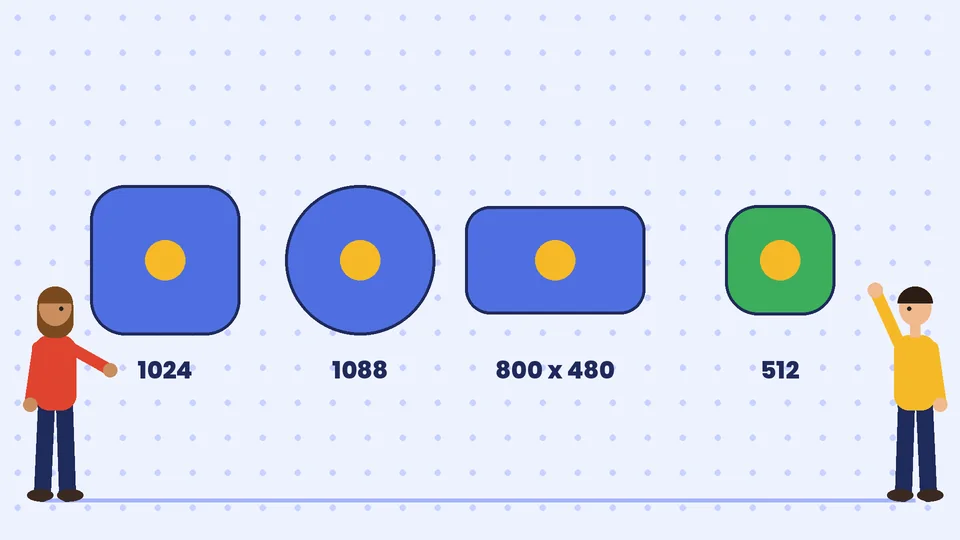
As of October 2026, Apple’s Human Interface Guidelines list these layout sizes:
| Platform | Layout shape | Shape after system masking | Layout size |
|---|---|---|---|
| iOS, iPadOS, macOS | Square | Rounded rectangle | 1024 x 1024 px |
| tvOS | Rectangle (landscape) | Rounded rectangle | 800 x 480 px |
| visionOS | Square | Circular | 1024 x 1024 px |
| watchOS | Square | Circular | 1088 x 1088 px |
Apple says the system automatically scales your icon to produce the smaller versions used in places like Settings and notifications. Supported color spaces are sRGB, Gray Gamma 2.2 and Display P3 on most platforms.
A few Apple-specific points matter for designers:
- Supply square, unmasked layers. The system applies the rounded corners or circle. Apple says layers with pre-applied masking hurt its highlight effects and make edges look jagged.
- Keep the main content centered, so it isn’t cut off when the system applies corners or a circular mask.
- Let the system add effects. Apple says there is no need to add highlights, drop shadows, bevels, blurs or glows, because the system applies dynamic effects.
- Layers and Icon Composer. For iOS, iPadOS, macOS and watchOS, Apple supports layered icons built in Icon Composer, a tool included with Xcode. You can also provide a flat bitmap such as a PNG, and the system will try to separate foreground and background itself. Apple recommends the layered format for more control.
- Prefer vector artwork for layers. Apple says SVG or PDF scale cleanly, with PNG preferred for raster artwork because it is lossless.
Android adaptive icon specifications
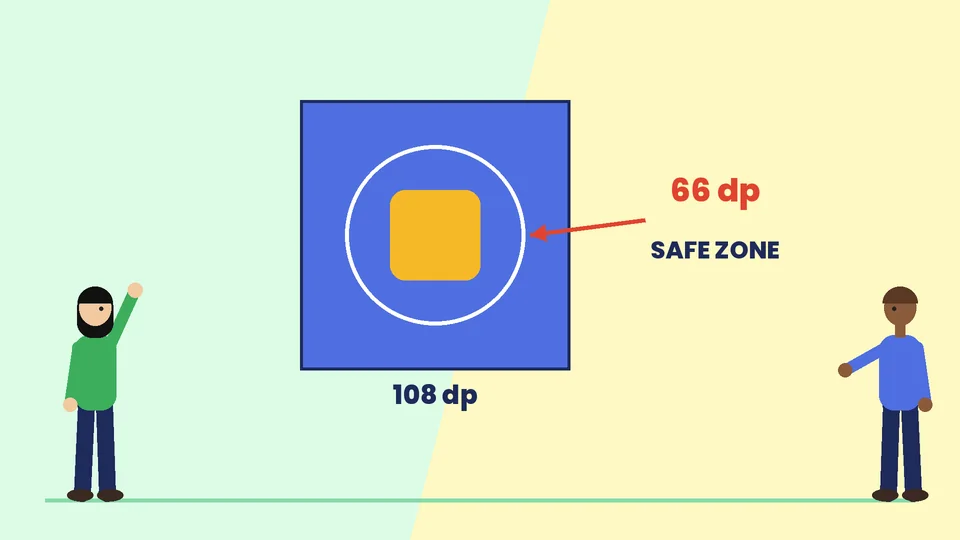
Android uses adaptive icons, which different devices mask into circles, squircles or other shapes. Google’s adaptive icon guide gives these rules as of October 2026:
- Layer size: size all layers to 108 x 108 dp.
- Safe zone: the inner 66 x 66 dp appears within the masked viewport, so your logo should be at least 48 x 48 dp and must not exceed 66 x 66 dp.
- Edges: use clean edges with no masks or background shadows around the outline.
- Monochrome layer: to support themed icons, provide a single monochrome layer. The guide says that starting with Android 13, users can theme adaptive icons, and launchers that support it tint the monochrome layer to match the user’s wallpaper and theme.
The guide says the outer 18 dp on each side of the layers is reserved for masking and for visual effects such as parallax or pulsing, which is why the logo has to stay in the center.
Google Play store icon specifications
The icon on your Google Play listing is a separate asset from the launcher icon. As of October 2026, Google Play’s icon specifications require:
| Specification | Google Play requirement |
|---|---|
| Final size | 512 x 512 px |
| Format | 32-bit PNG |
| Color space | sRGB |
| Maximum file size | 1024 KB |
| Shape | full square, with Google Play applying the mask |
| Corner radius | applied by Google Play, equal to 30% of icon size |
| Shadow | none, as Google Play adds it |
Google suggests using the full square as the background for minimal artwork, using its keyline grid to place logos, and letting illustrated artwork fill the full space. Don’t add your own drop shadow to the final asset.
Color, contrast and dark mode
Color is often what people use to find an app on a crowded home screen. Use one or two strong colors from your brand palette, and keep the background simple, such as a solid color or a gentle gradient. Our article on building a brand color palette explains how to choose colors that work together.
Modern platforms also show icons in different appearances. Apple says people can choose default, dark, clear or tinted icons on iOS, iPadOS and macOS, and the system generates any variants you don’t provide. Its guidance is to keep the icon’s core features the same in every appearance, use the light icon as the basis for the dark version, and avoid excessively bright images. On Android, the monochrome layer covers themed icons.
Test your icon on light, dark and photo wallpapers. A white symbol on a white background, or a black icon on a black screen, can disappear.
App icon, logo and favicon: how they relate
An app icon, a logo and a favicon are three versions of the same brand at different sizes:
- The logo is the full mark, often with the business name, used on your website, print and signage. See our guide to logo file formats for the versions you should keep.
- The app icon is a simplified mark in a square, with no text, sized to platform rules.
- The favicon is the tiny icon in a browser tab, which has its own sizes and file types. Our favicon design guide covers those.
Designing them together keeps the brand consistent. Often the app icon and favicon share the same simplified symbol, and the full logo is used everywhere there is room for it. Record the icon rules in your brand style guide so future updates stay consistent.
How to test an app icon
- View it at actual size on real devices. Install a test build or use a home screen mockup, and look at it next to other apps.
- Check every appearance. Default, dark and tinted on Apple devices, and themed icons on Android.
- Try different masks. On Android, preview circle, rounded square and other shapes to make sure nothing is cut off.
- Test recognition. Show the icon briefly to people who haven’t seen it and ask what the app does or which brand it belongs to.
- Compare against competitors. If every app in your category is blue, a different color may help yours stand out.
Common app icon mistakes
- Putting the full logo with the business name into a tiny square.
- Adding your own rounded corners, shadows or glossy effects.
- Placing important artwork near the edges, where masks cut it off.
- Using a photo that turns to noise at small sizes.
- Very thin lines that disappear on low-resolution screens.
- Forgetting the dark or themed versions.
- Adding words like “New” or “Free,” or rank and deal badges, which Google Play’s guidelines prohibit.
App icon design checklist
- One simple idea drawn with a few shapes.
- No text, photos, screenshots or Apple hardware.
- Apple icon at 1024 x 1024 px for iOS, iPadOS and macOS, with square, unmasked layers.
- Android layers at 108 x 108 dp, with the logo inside the central 66 x 66 dp.
- A monochrome layer for Android themed icons.
- Google Play icon at 512 x 512 px, 32-bit PNG, sRGB, under 1024 KB, full square, no shadow.
- No custom shadows, glows or bevels.
- Checked in dark, tinted and themed appearances.
- Tested at actual size on real devices and wallpapers.
- Consistent with your logo, favicon and brand style guide.
Frequently asked questions
What size should an app icon be?
Should I round the corners of my app icon?
Can I use my logo as my app icon?
Should an app icon include text?
What is the safe zone on an Android icon?
Do I need a dark mode version of my app icon?
Get an app icon that fits your brand
An app icon is the version of your brand people see most often, at a size where every detail counts. Start with one strong idea, follow each platform’s specifications, let the system add the effects and test on real screens. If you want an app icon that works with your logo, favicon and the rest of your brand, contact Pros Inc at 715 J St #200, San Diego, CA 92101, or call (858) 652-8920.