
QR Code Design: How to Make a Branded QR Code That Scans

How do you design a QR code that scans?
Design a QR code that scans by keeping strong contrast between a dark code and a light background, leaving a clear margin of four modules around it, printing it large enough for the distance people will scan from and testing it on several phones before you print. You can add brand color and a short call to action, but don’t cover, stretch or redraw the code itself. Most branded QR codes that fail do so because of low contrast, a missing margin or a design laid over the pattern.
This guide covers how QR codes work, how to size them for print, color and contrast, branding, where to place them on print pieces and a testing checklist. Pros Inc designs logos, print and packaging for small businesses from our office in San Diego, and we add QR codes to menus, cards, flyers and signs regularly. Technical details come from DENSO WAVE, the company that developed the QR code, read as of October 2026.
How a QR code works
A QR code stores data, usually a web address, in a grid of dark and light squares called modules. A phone camera reads the pattern by measuring the difference in light reflected from the dark and light areas.
A few parts matter for design:
- Modules. The small squares that make up the code. Their size determines how big the printed code is.
- Finder patterns. The three large squares in the corners that help the scanner find and orient the code.
- Quiet zone. According to DENSO WAVE’s guide to code size, a QR code needs a clear margin four modules wide on all sides, with nothing printed in it.
- Version. The QR code version sets how many modules the code has, from Version 1 at 21 by 21 modules up to Version 40 at 177 by 177 modules. Each version adds four modules per side.
The more data you encode, the higher the version and the denser the pattern. A short web address makes a simpler code that scans more easily at small sizes.
Error correction: why a code still scans when it is damaged
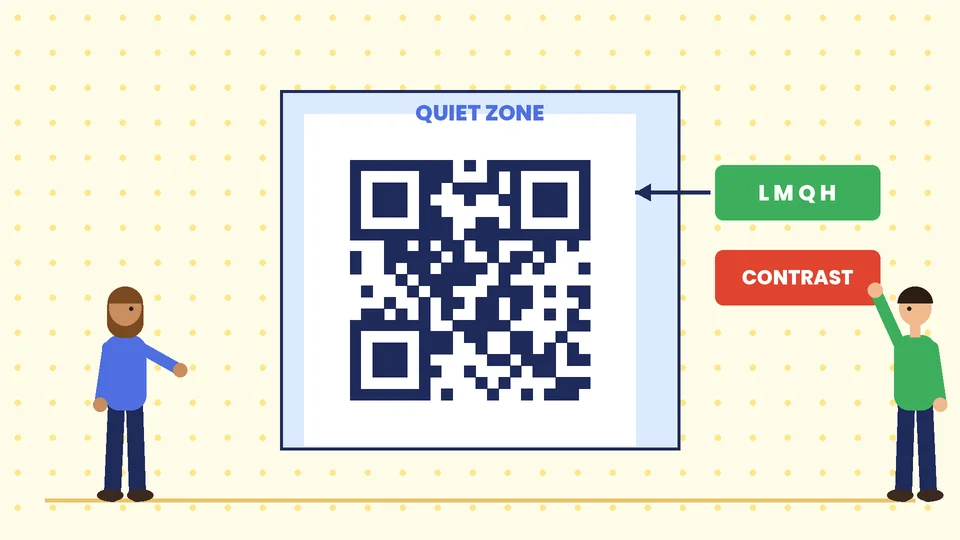
QR codes include error correction, so a code can still be read when part of it is dirty or damaged. DENSO WAVE lists four error correction levels, L, M, Q and H. A higher level restores more damage but makes the code larger for the same data.
DENSO WAVE says Level M, at 15%, is the most frequently selected. Level Q or H suits places where codes get dirty, such as factories, and Level L suits clean environments with a lot of data. For most printed marketing pieces, Level M is a sensible default. If your code will sit on outdoor signage or packaging that gets handled, consider a higher level.
Error correction is not an invitation to cover part of the code with a logo. DENSO WAVE’s QR code FAQ warns that overlaying an illustration or a design can deform the code, so reading becomes slow or impossible. If you place a small logo in the center, keep it small, keep the finder patterns clear and test thoroughly.
How big should a QR code be?
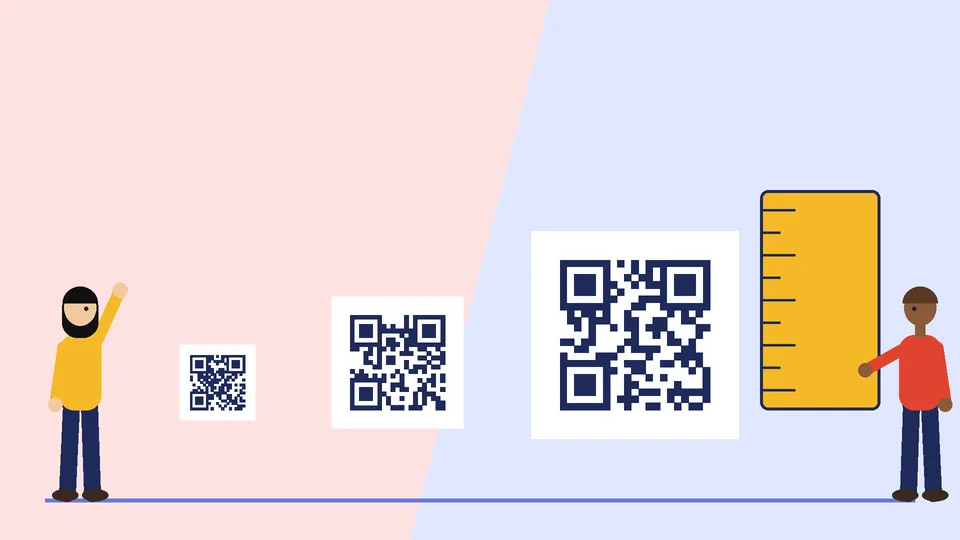
Size depends on the module size and the version. DENSO WAVE’s FAQ says a common laser printer can print modules down to about 0.17 mm. At that size, the smallest code, 21 modules wide, would be about 3.6 mm across before the quiet zone, far too small for most marketing uses.
DENSO WAVE’s sizing guide walks through an example: a Version 3 code printed at 400 dpi with four dots per module has modules of 0.254 mm. The code is 7.366 mm wide, and adding the four-module margin on each side makes the full area a 9.398 mm square.
For marketing pieces, think about how far away people will be:
| Piece | Typical scanning distance | Design approach |
|---|---|---|
| Business card | Held in hand | Small code works if the web address is short |
| Flyer or postcard | Held in hand | Give the code a clear spot and a label |
| Restaurant menu or table tent | On the table | Medium code, away from folds |
| Poster or window sign | A few feet away | Large code, placed at eye level |
| Trade show banner | Across an aisle | Very large code, tested from the expected distance |
The surest method is to print a proof at actual size and scan it from the distance people will really be standing.
Color and contrast
DENSO WAVE’s FAQ explains that scanners use red light to capture the code. If both the background and the code reflect or absorb red light in a similar way, the code can’t be read. Its examples include a red code on a white background and a blue code on a green background, both of which fail. Its basic advice is to print black on a white background.
You can use brand colors safely if you follow a few rules:
- Use a dark code on a light background. Reversed codes, light on dark, go against DENSO WAVE’s basic black-on-white advice, so test them carefully if you use them.
- Keep strong contrast. As a reference point, the W3C’s contrast guideline for text asks for at least 4.5:1 for normal text. It is a text standard, not a QR code rule, but a code with less contrast than readable text is a warning sign.
- Avoid gradients and busy backgrounds behind the code.
- Avoid transparent or shiny materials without a solid light background printed behind the code.
Our guide to building a brand color palette explains how to choose dark and light brand colors that work together.
Branding a QR code without breaking it
A QR code can still look like part of your brand:
- Frame it. Put the code inside a colored frame or panel that matches your brand, outside the quiet zone.
- Add a call to action. A short label such as “Scan to see the menu” or “Scan for 10% off” tells people why to scan.
- Show the destination. Print the short web address under the code for people who prefer to type it.
- Use a dark brand color. A deep navy or dark green code on white can work, if you test it.
- Keep the pattern intact. Don’t round off, stretch, recolor parts of or redraw the modules unless your QR generator is built for it, and test every version.
DENSO WAVE notes in its FAQ that “QR Code” is a registered trademark of DENSO WAVE INCORPORATED, and that the trademark applies to the word, not to the pattern. If you write the words “QR Code” in a publication, DENSO WAVE asks that you include a line stating it is their registered trademark.
Where to place QR codes on print pieces
- Business cards. On the back, with plenty of white space. See our business card design guide.
- Flyers and postcards. Near the call to action, not crowded into a corner. Our flyer design and postcard design guides cover layout.
- Menus. On the front or on table tents, away from folds and creases. See restaurant menu design.
- Signs. At a height people can reach with a phone, away from glare. Our business signage design guide covers sightlines.
- Trade show booths. Large, at eye level and repeated on handouts. See trade show booth design.
- Packaging. On a flat area, not wrapped around a curve or across a seam.
Choosing the destination
The code is only as good as the page it opens:
- Link to a mobile-friendly page made for the person scanning.
- Use a short, stable web address you control, so you can update the page without reprinting.
- Consider a dynamic QR code service if you want to change destinations or track scans, but check its terms and make sure codes keep working if you stop paying.
- Add tracking parameters to the web address if you want to measure scans in your analytics.
- Check that the destination loads quickly on mobile data.
QR code design checklist
- Dark code on a light background with strong contrast.
- A clear quiet zone four modules wide on every side.
- Size chosen for the real scanning distance, proofed at actual size.
- No illustration or text laid over the pattern.
- A short call to action and the web address nearby.
- Destination page is mobile-friendly and fast.
- Tested on several phones, in normal and low light, before printing.
- Placed on a flat surface, away from folds, seams and glare.
Frequently asked questions
What is the minimum size for a printed QR code?
Can I make my QR code in brand colors?
Can I put my logo in the middle of a QR code?
What is the quiet zone on a QR code?
Which error correction level should I use?
Do I need permission to use a QR code?
Get print pieces with QR codes that work
A QR code is a small part of a design, but a failed scan wastes the whole print run. Keep contrast high, protect the quiet zone, size for the distance and test before you print. If you need menus, cards, flyers or signage with codes that scan and still look on-brand, contact Pros Inc at 715 J St #200, San Diego, CA 92101, or call (858) 652-8920.