
Favicon Design: Sizes, Formats and How to Make One
How do you design a favicon?
Design a favicon by starting from the simplest part of your logo, usually the symbol or a single letter, and placing it on a square canvas that still reads clearly at 16 pixels. Export one master file at 512 x 512 pixels, create the smaller sizes from it, and add it to your site so browsers and search engines can find it. Then check it in a browser tab, on a phone home screen and in search results.
This guide explains what a favicon is, the sizes you need, how to simplify your logo into a small icon, how to add it to WordPress or another site and what Google looks for. Pros Inc designs logos and brand identities for small businesses from our office in San Diego, and a favicon is part of every logo file kit we deliver. Requirements come from Google Search Central, WordPress and MDN documentation, read as of October 2026.
What is a favicon?
A favicon is the small icon that represents your website. Browsers show it in tabs, bookmarks and history lists. Phones use a larger version when someone saves your site to their home screen, and Google can show it next to your site in mobile search results.
Because it appears so small, a favicon is not just your logo shrunk down. It is a simplified mark designed to stay recognizable at a size where fine details disappear. Our guide to logo file formats covers where the favicon fits in your full set of logo files.
Favicon sizes you need
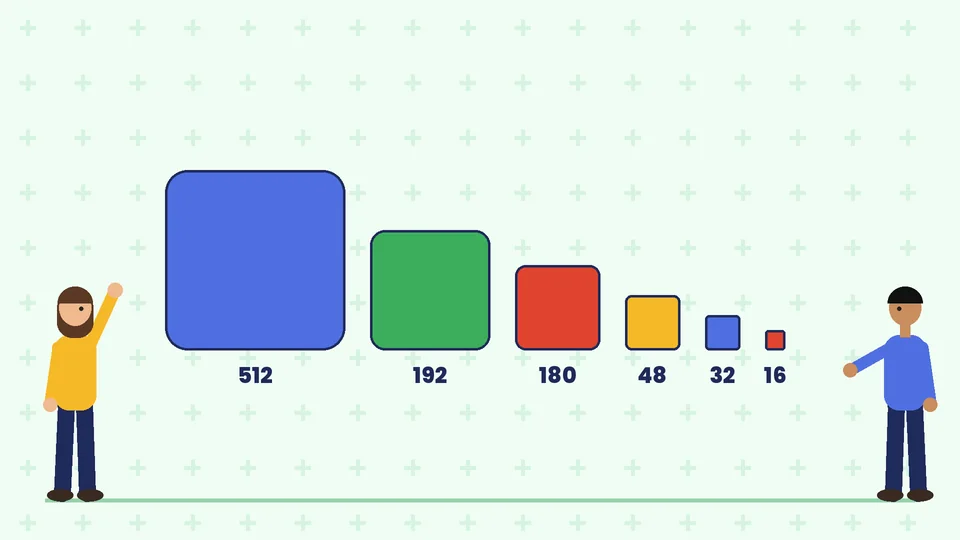
Different devices use different sizes, so start with one large square master and export smaller versions from it.
| Size (pixels) | Where it is used |
|---|---|
| 512 x 512 | Master file; WordPress site icon upload; web app manifest |
| 192 x 192 | Android home screen and web app manifest |
| 180 x 180 | Apple touch icon for iPhone and iPad home screens |
| 48 x 48 and larger | Recommended minimum for Google Search results |
| 32 x 32 | Browser tabs on most desktop screens |
| 16 x 16 | Smallest browser tab and bookmark size |
WordPress’s guide to creating a favicon asks for a square image of at least 512 x 512 pixels for the site icon, and recommends PNG. For installable web apps, web.dev’s web app manifest guide recommends providing at least a 192 x 192 and a 512 x 512 pixel icon.
How to turn your logo into a favicon
Pick the simplest part of your logo
Most logos have more detail than a 16-pixel square can show. Start with one of these:
- The symbol or mark on its own, without the company name;
- A single initial or a short monogram in your brand font;
- A simple shape taken from the logo, in your main brand color.
Avoid using your full logo with words, taglines or thin outlines. Text becomes unreadable at small sizes, and wide logos end up tiny in a square.
Simplify the details
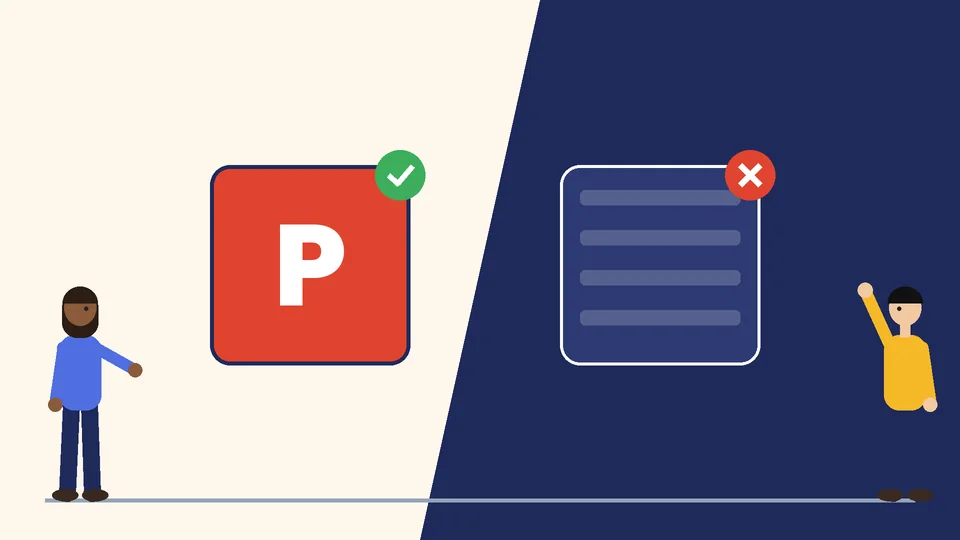
Shrink your design to 16 x 16 and 32 x 32 pixels and look at it at actual size. Remove anything that turns into a blur:
- thin lines and small gaps;
- gradients, shadows and textures;
- extra colors beyond one or two;
- small letters or numbers.
Thicken strokes and increase spacing until the shape reads clearly. At the smallest sizes, a designer may adjust the icon pixel by pixel so edges stay crisp.
Use strong contrast
Browser tabs can be light or dark, so test your favicon on both. A solid background shape, such as a colored square or circle behind a white mark, keeps the icon visible on any tab color. Use colors from your brand color palette so the favicon matches the rest of your identity.
Keep the shape square
Favicons are displayed in square spaces. Center your mark with a small, even margin so it does not touch the edges, and check that it is not cropped when a phone applies rounded corners to home screen icons.
File formats for favicons
- PNG works for every size and is the most common choice.
- ICO is the traditional favicon format and can hold several sizes in one file. Older browsers look for a file named favicon.ico at the root of your site.
- SVG is a vector format that stays sharp at any size and is supported by most current browsers. Keep a PNG version as a fallback.
According to Google’s favicon guidelines, any valid favicon format is supported.
How to add a favicon to your website
In WordPress
WordPress calls the favicon the site icon. According to the WordPress documentation, version 6.5 and later moved it to Settings, then General, where you click to choose a site icon. In versions 4.3 to 6.4, it is under Appearance, then Customize, then Site Identity. Upload a square image of at least 512 x 512 pixels, with PNG as the recommended format, and WordPress adds the icon code to your pages, so you do not need to edit theme files.
On other websites
On other sites, add a link element in the head of your home page, for example a link with rel=”icon” pointing to your favicon file. MDN’s reference for the rel attribute lists “icon” as the value for a site icon and “apple-touch-icon” for the iPhone and iPad version. Shopify and most website builders also have a favicon setting in the theme or site settings.
What Google looks for in a favicon
Google can show your favicon next to your site name in search results. According to Google’s favicon guidelines:
- the favicon is defined with a link element in the head of your home page;
- Google shows only one favicon per site, by hostname;
- both the favicon file and your home page must be crawlable by Google;
- the favicon must be square, at least 8 x 8 pixels, and Google recommends using one larger than 48 x 48 pixels;
- the favicon should visually represent your brand and must not be inappropriate.
Google does not guarantee that your favicon will appear, and changes can take time to show in results. A clear, branded favicon also helps your site stand out in tabs and search, along with good search engine optimization.
Favicon checklist
Before you launch, check that:
- the icon reads clearly at 16 x 16 and 32 x 32 pixels;
- it is visible on both light and dark tabs;
- you have a 512 x 512 master plus the smaller sizes;
- it uses your brand colors and matches your logo;
- the favicon file loads and is not blocked from crawlers;
- it appears in a browser tab and when saved to a phone home screen.
Record your favicon files and rules in your brand style guide so anyone updating your website uses the correct version. If you are planning a new site, add the favicon to your website redesign checklist.
Frequently asked questions
What size should a favicon be?
Can I use my full logo as a favicon?
What file format is best for a favicon?
Why is my favicon not showing in Google?
How do I add a favicon in WordPress?
Should a favicon have a background?
Get a favicon that matches your brand
A favicon is a small detail, but it appears on every page of your website and in search results. If you need a favicon, a full logo file kit or a brand refresh, contact Pros Inc at 715 J St #200, San Diego, CA 92101, or call (858) 652-8920.