
Business Card Design: What to Include, Size and Print Setup

What makes a good business card design
A good business card tells people who you are, what you do and how to reach you in a few seconds, and it looks like the rest of your brand. In practice, that means a clear hierarchy with your name first, only the contact details people will use, readable type, plenty of space, and a file set up correctly for print with bleed, a safe area, 300 DPI images and CMYK color.
This guide covers what to put on a card, the design choices that make it readable, the standard size and print setup, how to add a QR code that scans, and paper and finish options. Pros Inc designs business cards and other printed materials for small businesses from our office in San Diego, and this is the checklist we work from. Print specifications come from printer guides, checked as of October 2026, with links in each section. Every printer has its own template, so always use the one for the card you are ordering.
What to put on a business card
Start with less than you think you need. Every extra line makes the important ones harder to find.
The essentials
- Your name as people should say it and search for it
- Your job title or role, short enough to fit on one line
- Your business name and logo, the same as on your website and signs
- One phone number that you actually answer
- One email address, ideally on your own domain
- Your website, without “https://” or “www.” if it reads clearly without them
Optional details
- A street address, if customers visit you or a local address builds trust
- A short line describing what you do, such as “Packaging and label design”
- A QR code that opens a contact page, portfolio or booking page
- One or two social profiles, only if you keep them up to date
Leave off anything that changes often, such as a temporary promotion. You can put that on a sticker, a flyer or the landing page your QR code opens.
Design choices that make cards readable
A business card is small, so every design decision matters more than it would on a flyer.
Build a clear hierarchy
Decide what the eye should see first, second and third. Usually that is your name or logo, then your role and business, then the contact details. Use size, weight and color to separate those levels instead of adding more fonts.
Choose readable type
Pick one or two typefaces that match your brand. Very thin weights, tight letter spacing and decorative scripts become hard to read once printed. Print your design at actual size and read it at arm’s length before you order. The Vistaprint file preparation guide makes the same point: an enlarged screen preview can make tiny text look easier to read than it really is.
Use contrast
Dark text on a light background is the easiest to read. If you use a dark card, make the text clearly lighter and a little larger. Avoid placing small text over photos or patterns.
Leave space
White space makes a card look confident and helps people find the details quickly. Keep text away from the edges, both for looks and because cutting is not perfectly exact.
Use both sides
Many designs put the logo and brand color on one side and the contact details on the other. That keeps the contact side clean and gives the brand side room to make an impression.
Match your brand
Use the same logo files, colors and typefaces as your website, signs and packaging. A brand style guide records those rules so every card your team orders looks the same. If you are not sure which logo file to send your printer, our guide to logo file formats explains the difference between vector and raster files.
Standard size and print setup
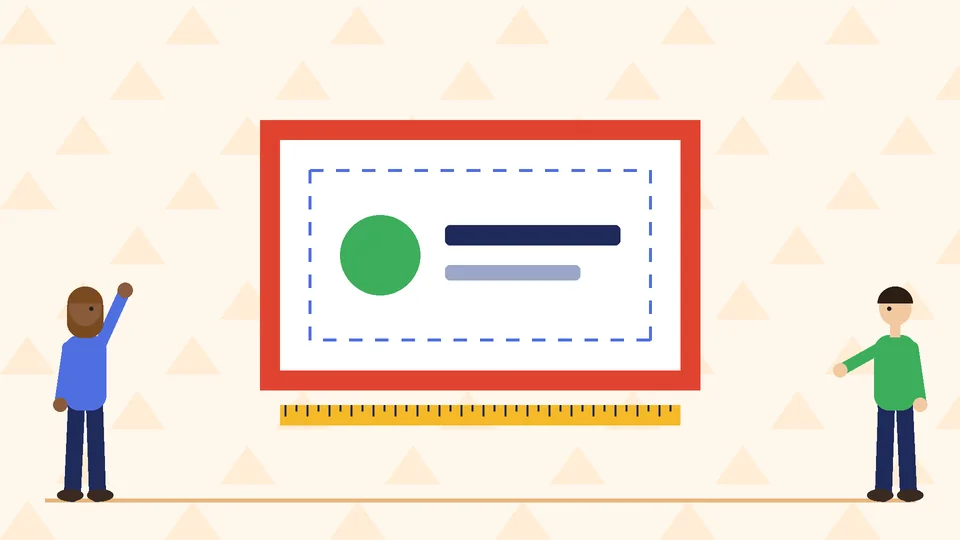
In the US, the standard business card is 3.5 by 2 inches. The US Press business card template and the Vistaprint guide both use these measurements when the printer asks for 0.125 inch of bleed on each side.
| Setting | Measurement | Why it matters |
|---|---|---|
| Trim size | 3.5 x 2 in | The finished card |
| Artwork with bleed | 3.75 x 2.25 in | Background extends past the cut so no white edges show |
| Safe area | 3.25 x 1.75 in | Keeps text and logos 0.125 in inside the trim |
Printers do not all use the same numbers. Vistaprint’s own standard card template, for example, lists 3.61 by 2.11 inches including bleed and a 3.36 by 1.86 inch safe area. Download the template for the exact product you are ordering and design inside it.
Resolution
Photos and other raster images should be at least 300 DPI at the size they will print. Changing a file’s resolution label from 72 to 300 does not add detail. Use a larger original or a vector version instead.
Color
Screens show RGB color, and printing uses CMYK ink. Convert your artwork to CMYK or use the printer’s recommended color profile, then check your brand colors. Bright screen colors often look less vivid on paper. For small black text, Vistaprint recommends 100% K black (black ink only) to keep edges sharp.
File format
A print-ready PDF with fonts embedded or converted to outlines is the safest file to send. It keeps vector artwork sharp and prevents font substitutions. Keep an editable copy before you outline any text. Our commercial printing guidelines cover file preparation for other printed pieces.
Add a QR code that scans
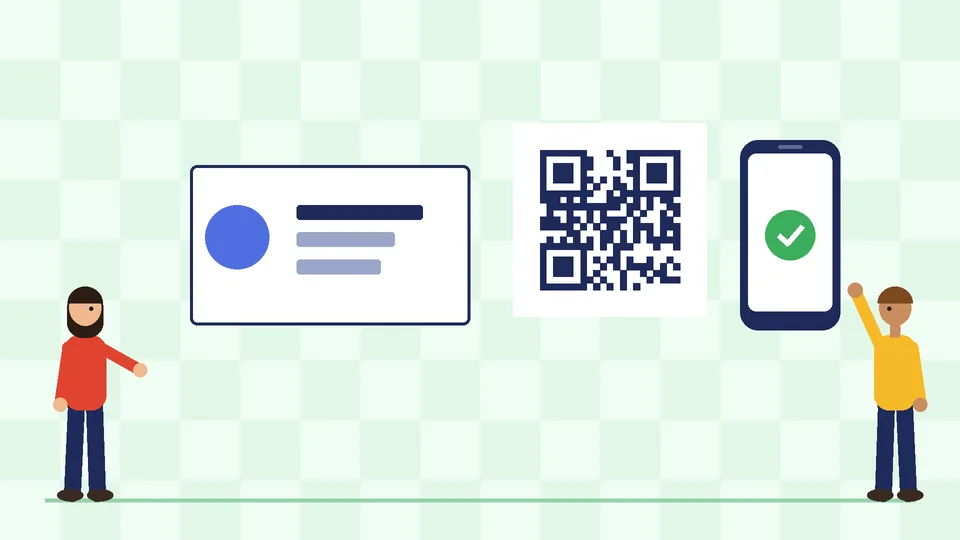
A QR code can open your contact card, portfolio, booking page or a landing page made for people you meet in person. Follow these rules so it works.
- Point it at a page you control. Use a URL on your own domain, so you can update the page without reprinting cards.
- Keep the link short. Shorter data makes a simpler code with larger squares that is easier to scan.
- Leave a quiet zone. DENSO WAVE, which developed the QR code, says the code needs a clear margin at least four modules (the small squares) wide on every side.
- Make it big enough. The Vistaprint guide suggests at least 0.8 by 0.8 inch (about 20 by 20 mm) for a business card QR code, with extra space around it, and more for dense codes.
- Use a dark code on a light background. Reversed or low-contrast codes may not scan.
- Test a printed sample. Print it at actual size and scan it with more than one phone before you order.
Paper and finishes
Paper and finish change how a card feels and how people remember it. Choose them to support the brand rather than to show off.
- Matte: reduces glare and feels understated
- Gloss: makes colors and photos look brighter
- Uncoated: soft and natural, and easy to write on
- Thicker stock: feels more substantial in the hand
- Special finishes: foil, spot UV, raised print and rounded corners add interest but also cost and production time
If you use a special finish, ask the printer how they want the artwork set up. Many ask for a separate mask file that shows exactly where the finish goes.
How to design a business card, step by step
- Gather your brand assets. Collect vector logo files, brand colors and fonts.
- Write the content. List exactly what goes on the card and remove anything people will not use.
- Download the printer’s template. Set up the document with the trim size, bleed and safe area for your product.
- Sketch the layout. Decide which side carries the brand and which carries the contact details.
- Design and check hierarchy. Make sure the name or logo stands out first, then the contact details.
- Add and test the QR code, if you use one.
- Proofread. Check every phone number, email address and URL yourself. Upload checks can catch technical issues, but they cannot tell you that a phone number is wrong.
- Export a print-ready PDF with bleed, CMYK color and embedded fonts.
- Order a proof or a small run before printing large quantities.
Business cards as part of your brand
A business card is often the first printed piece someone takes away from meeting you. When it matches your website, signs and packaging, people connect them. If your card is part of a larger refresh, start with your corporate identity and branding so every piece is designed from the same rules.
Frequently asked questions
What size is a standard business card?
What should be on a business card?
What resolution should a business card be?
Should business cards be CMYK or RGB?
How big should a QR code be on a business card?
Do I need both sides of a business card?
Get help with your business cards
A clear, well-made business card helps people remember you and contact you later. If you need business cards or other printed materials designed to match your brand, contact Pros Inc at 715 J St #200, San Diego, CA 92101, or call (858) 652-8920.