
Website Redesign Checklist: Plan, Launch and Protect Your SEO
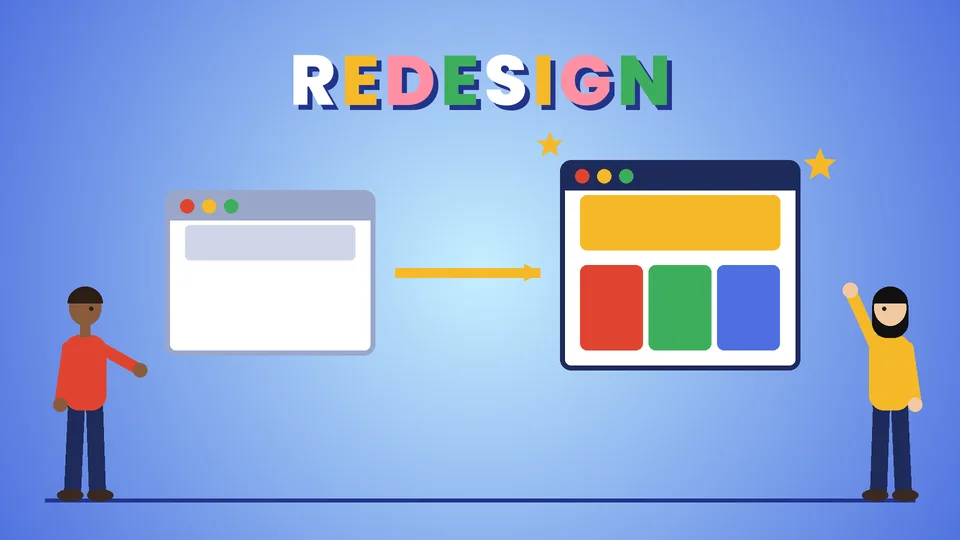
Why a redesign needs a checklist
A website redesign is one of the few marketing projects that can make things worse if it goes wrong. A new design can look better and still lose search traffic, break links that customers and partners rely on, or drop the forms that bring in leads. Most of those problems are avoidable with planning.
This checklist covers the work in order: before you start, while you design and build, the week of launch, and the weeks after. It is written for small businesses and their teams, whether you are refreshing a brochure site or rebuilding an online store. Search guidance comes from Google Search Central and performance targets from Google’s web.dev, checked as of October 2026. Pros Inc plans and builds website redesigns for US businesses from our office in San Diego, and this is the list we work through on our own projects.
Before you start: set goals and take stock
Write down why you are redesigning
“It looks dated” is a fair reason, but it is not a goal. Pick two or three outcomes you can measure, such as more quote requests, more online sales, fewer support calls or a site your team can update without a developer. Those goals decide every later trade-off.
Record your baseline
Before anything changes, save a snapshot of how the current site performs:
- Monthly visits, leads and sales from your analytics.
- Top landing pages and the search queries that bring visitors, from Google Search Console.
- Your current speed scores for the main page types.
- Conversion rates for key forms and checkout.
Without a baseline you cannot tell whether the redesign helped.
Inventory every URL
List every page, post, product, file and image that has its own address. Google’s guide to moving a site with URL changes suggests several sources: your sitemaps, server logs or analytics for the pages that get the most traffic, the links report in Search Console, and your content management system’s own list of URLs.
Decide what stays, changes or goes
For each URL, mark whether it stays as it is, moves to a new address, merges with another page or is removed. Pages with traffic, links or sales deserve the most care.
Gather brand assets
Collect your logo files, colors, fonts, photography and tone of voice before design starts. If you do not have them written down, our guide to creating a brand style guide explains what to include.
During design and build
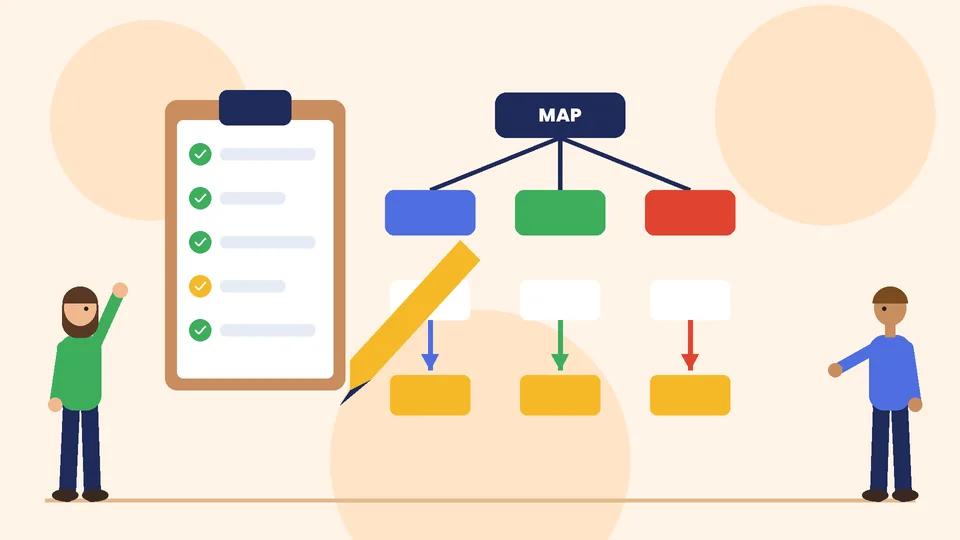
Plan the structure first
Sketch the main navigation and page types before anyone designs a homepage. Group content the way your customers look for it, and keep the main menu short.
Write or update content alongside the design
Content written after the design is done tends to be squeezed into boxes that do not fit it. Draft headings and key copy early, and design around real text rather than placeholder text.
Design for phones first
Many visitors will see the new site on a phone. Review every page type on a small screen before approving the desktop version.
Build accessibility in
Accessible sites are easier for everyone to use, and problems are much easier to fix while each template is being built than after launch. Check color contrast, headings, alt text, keyboard access and form labels as each template is built. Our website accessibility guide lists the checks.
Set performance targets
Google’s Core Web Vitals give clear targets. As of October 2026, web.dev recommends Largest Contentful Paint within 2.5 seconds, Interaction to Next Paint of 200 milliseconds or less and Cumulative Layout Shift of 0.1 or less. Agree on these targets with your designer or developer at the start, because heavy images, sliders and scripts are much harder to remove after launch.
Build on a staging site, and keep it private
Build the new site on a separate staging address. Block it from search engines while it is in development, but plan for the moment you remove that block. Google’s site-move guide warns that if you block all crawling during development, you need to prepare what the robots.txt file should look like once the site goes live.
Prepare redirects before launch
Redirects are the single most important technical task in a redesign that changes URLs.
Map every old URL to a new one
Using your URL inventory, record the new address for each old page that moved or merged. Redirect each old URL to the most relevant new page, not to the homepage. Google’s site-move guide notes that redirecting many old URLs to one irrelevant destination, such as the homepage, can confuse users and might be treated as a soft 404 error.
Use permanent, server-side redirects
Google’s documentation on redirects explains that permanent redirects tell Google the new page should be treated as the main version, while temporary redirects do not. It recommends a permanent server-side redirect whenever possible, and suggests JavaScript redirects only when server-side or meta refresh redirects are not possible.
Let removed pages return a 404 or 410
For pages you are removing on purpose with no replacement, Google recommends that the old URLs return a 404 or 410 status on the new site. Do not redirect everything to the homepage just to avoid error pages.
Update internal links
Change links inside your new site to point straight at the new URLs rather than relying on redirects. Google’s guide also recommends a self-referencing canonical tag on each new page.

Launch week
Use this list on launch day and the days after:
- Remove the staging block. Check that robots.txt and any noindex tags allow search engines to crawl the pages you want indexed.
- Turn on redirects and test a sample of old URLs, especially your top landing pages.
- Check Search Console verification. Google’s guide notes that if you verify with an HTML file, you need to include that file on the new site.
- Submit the new sitemap in Search Console.
- Test every form and checkout. Submit real test entries and confirm they arrive where they should.
- Check analytics and tracking tags on the new templates.
- Test on phones and different browsers.
- Check speed on the main page types against your targets.
- Review the footer, contact details and legal pages for accuracy.
If you are also changing domain names, Google’s guide explains how to submit a Change of Address in Search Console for the old site.
After launch: monitor and fix
Expect a settling period
Google’s site-move guide says that for medium-sized websites it can take a few weeks or more for Google to start showing the new URLs instead of the old ones, and longer for larger sites. Some movement in rankings during that period is normal.
Watch the right reports
Check Search Console for crawl errors, pages that are not indexed, and changes in clicks and impressions for your top pages. Compare analytics against your baseline every week for the first month.
Keep redirects in place
Google advises keeping redirects for as long as possible, generally at least one year. Many businesses simply keep them permanently.
Fix what you find
Broken links, missing images and forms that stopped working usually show up in the first few weeks. Keep a short list and fix issues in order of how many visitors they affect. If search traffic does not recover, an outside search engine optimization review can help find the cause.
A one-page summary
- Before: goals, baseline, URL inventory, keep or remove decisions, brand assets.
- During: structure, content, mobile design, accessibility, performance targets, private staging site.
- Redirects: URL map, permanent server-side redirects, 404 or 410 for removed pages, updated internal links.
- Launch: remove the staging block, test redirects, verification, sitemap, forms, analytics, devices, speed.
- After: monitor Search Console and analytics, keep redirects at least a year, fix issues by impact.
If your site runs on Shopify, many of the same steps apply, and our guide to Shopify speed optimization covers performance on that platform.
Frequently asked questions
How long does a website redesign take?
Will a website redesign hurt my SEO?
How long should I keep redirects after a redesign?
Should I redirect old pages to the homepage?
What should I test before launching a redesigned website?
Do I need a new website or just a refresh?
Work with Pros Inc
Pros Inc plans and builds website redesigns that protect your search traffic and make the site easier for customers to use. To talk about your project, contact us at 715 J St #200, San Diego, CA 92101, or call (858) 652-8920.