
Shopify Homepage Design: What to Put on Your Store’s Homepage
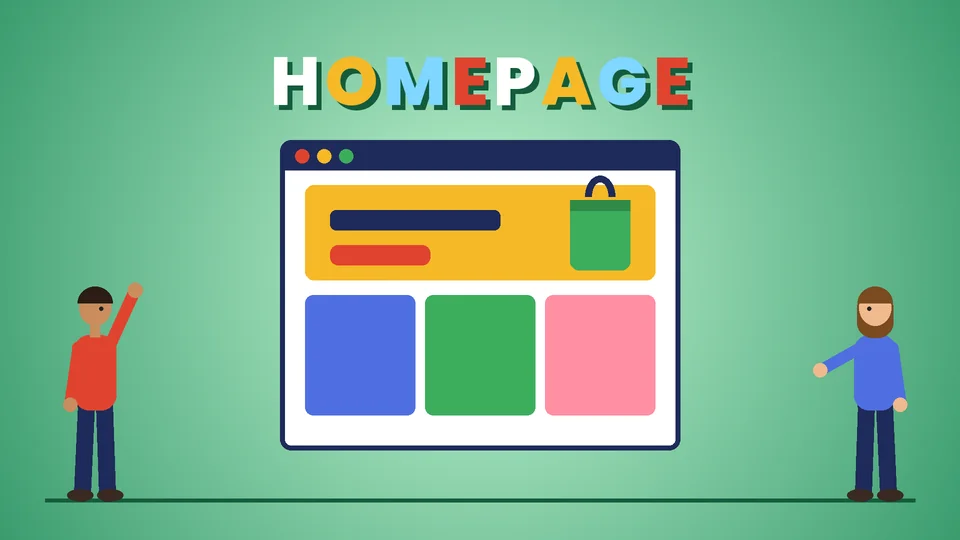
What a Shopify homepage needs to do
A Shopify homepage has three jobs: tell a new visitor what you sell and why it is worth a look, send returning customers straight to what they came for, and build enough trust that people keep browsing. Most visitors decide within the first screen whether to stay, so the top of the page carries the most weight.
The homepage is often where store owners spend the most design time, yet many shoppers land first on a product or collection page from search, ads or social posts. A good homepage still matters, because it is where people go to orient themselves, check that a business is real and find their way to the right collection. This guide covers how Shopify homepages are built, which sections to include and in what order, how to keep the page fast and accessible, and how to test changes. Shopify features come from the Shopify Help Center and performance targets from Google’s web.dev, checked as of October 2026. Pros Inc designs and builds Shopify stores for US businesses from our office in San Diego, and this is the structure we start from before adapting it to each brand.
How Shopify homepages are built
On most current Shopify themes, the homepage is a template made of sections, and each section is made of blocks. You arrange them in the theme editor without writing code.
Shopify’s guide to sections and blocks explains that the theme editor opens on the home page by default, and that you can add, remove, reorder and hide sections and the blocks inside them. As of October 2026, it lists these limits:
- Each template can have up to 25 sections.
- Each template can have up to 1,250 blocks across all its sections.
You will rarely need anywhere near that many. A clear homepage usually uses 6 to 10 sections. The header and footer are shared across the site, so changes there affect every page.
Apps can add their own blocks too. The same Help Center page explains that app blocks let you position features added by installed apps, such as reviews or loyalty widgets, in specific places on a page. Check what your apps add to the homepage, because each one can affect speed.
The sections to include, in order
There is no single correct layout, but this order works for most small and mid-sized stores. Adjust it to what your customers need first.
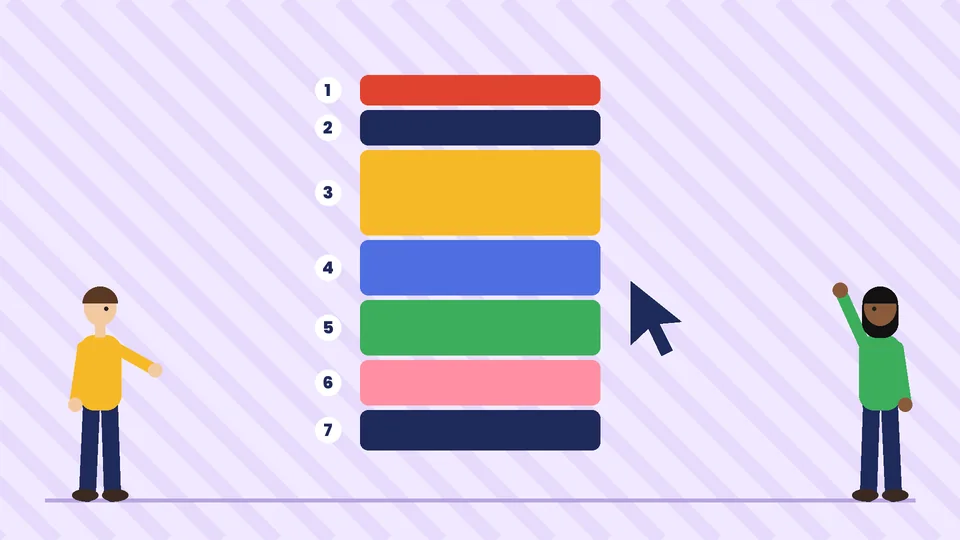
1. Announcement bar
A single line above the header for one message, such as a shipping threshold, a current offer or a delivery cut-off. Keep it short and change it when the message expires.
2. Header and navigation
Your logo, the main menu, search, account and cart. Limit the main menu to the categories people shop by. If you sell many products, make search easy to find on mobile.
3. Hero section
The first full section. It should answer “what is this store and why should I care?” in a few seconds:
- One clear headline that names what you sell, not a vague slogan.
- A short supporting line with your main reason to buy, such as materials, a guarantee or who it is for.
- One primary button to your best-selling collection or a shop-all page.
- An image that shows the product in use or in detail.
Slideshows that rotate several messages often hide the most important one. A single, well-chosen hero image is usually easier to read and faster to load.
4. Featured collections or categories
Help people choose a path. Show your main categories with clear names and representative images, so a visitor can go from homepage to the right collection in one tap.
5. Best sellers or featured products
Show a short row of products with prices. Pick products that represent the store well and are in stock. Link to the full product page, where the details live; our guide to Shopify product page design covers what that page needs.
6. Value and trust section
Explain the reasons to buy from you in short points: shipping and returns, guarantees, materials, where products are made, or how you support customers. Only include claims you can back up.
7. Reviews and social proof
Real customer reviews near the top half of the page reassure new visitors. Follow the rules for collecting and displaying reviews; our guide to online reviews for small businesses explains what is allowed.
8. Brand story
A short section about who you are, with a link to the full About page. Keep it brief on the homepage; people who want more will click.
9. Email sign-up
A simple form with a clear reason to join, such as early access to new products. Ask for an email address only.
10. Footer
Contact details, policies, FAQs, shipping and returns, social links and secondary navigation. Many shoppers scroll to the footer to check that a business is legitimate, so keep it complete.
Design for mobile first
Many shoppers will see your homepage on a phone first, so design and review it on a small screen before desktop:
- Check the first screen on a phone. The headline and main button should be visible without scrolling.
- Use large tap targets. Buttons and links should be easy to tap with a thumb.
- Shorten text. Lines that read well on desktop can become long blocks on mobile.
- Crop images for both layouts. Many themes let you set a separate mobile image for the hero.
- Keep pop-ups polite. A sign-up pop-up that covers the page as soon as it loads gets in the way. Delay it or use a small banner instead.
Keep the homepage fast
The homepage is often the heaviest page on a store, with large images, videos, sliders and app widgets. Google’s guidance on Core Web Vitals sets clear targets. As of October 2026, it recommends a Largest Contentful Paint within 2.5 seconds, an Interaction to Next Paint of 200 milliseconds or less, and a Cumulative Layout Shift of 0.1 or less, measured at the 75th percentile of page loads.
On a Shopify homepage, the usual fixes are:
- Compress and size images for the space they fill.
- Use video sparingly, and avoid autoplaying large files at the top of the page.
- Remove unused sections and apps, including old app code left in the theme.
- Limit sliders and animations, which add weight and can shift the layout.
- Set image dimensions so the page does not jump while loading.
Our guide to Shopify speed optimization goes through these fixes in more detail.
Make it accessible
An accessible homepage is easier for everyone to use. A few checks cover most homepage problems:
- Text contrast. Text over hero images is a common failure. Add an overlay or move text beside the image if it is hard to read.
- Alt text. Describe meaningful images; leave decorative ones empty.
- Headings in order. Use one main heading and logical section headings.
- Keyboard use. Make sure menus, sliders and pop-ups can be used and closed with a keyboard.
Your colors and fonts should already be documented in a brand style guide, including which combinations pass contrast checks.
Match the homepage to your marketing
Your homepage should support where traffic comes from. If most visitors arrive from social posts about one product line, feature that line near the top. If you run seasonal campaigns, update the hero and featured collections to match, then switch them back afterwards. Thinking about where a visitor is in the buying process helps here; our guide to sales funnel stages explains how messages change from first visit to repeat purchase.
Test and improve
Treat the homepage as something you improve over time:
- Check your analytics. Look at how many visitors land on the homepage, where they click next and how many leave without clicking.
- Change one thing at a time. A new hero headline or a different featured collection, not a full redesign at once.
- Watch for a few weeks. Short tests on small traffic can mislead.
- Ask customers. A short survey or a few conversations often explain what analytics cannot.
For larger stores with complex needs, such as several brands, regions or custom sections, a developer can build custom sections for your theme. Our guide to choosing a Shopify Plus development company covers what to look for.
Common Shopify homepage mistakes
- A vague hero headline that does not say what you sell.
- Rotating slideshows that bury the main message.
- Too many sections, each saying something different.
- Out-of-stock products in featured rows.
- Heavy app widgets that slow the page.
- Text on busy images that fails contrast checks.
- An empty or incomplete footer that makes the store look less trustworthy.
Frequently asked questions
What should be on a Shopify homepage?
How many sections should a Shopify homepage have?
Should I use a slideshow on my Shopify homepage?
How do I edit my Shopify homepage?
How fast should a Shopify homepage load?
Work with Pros Inc
Pros Inc designs Shopify homepages and full store themes that reflect your brand and help shoppers find what they came for. To talk about your store, contact us at 715 J St #200, San Diego, CA 92101, or call (858) 652-8920.