
Shopify Collection Page Design: Layout, Filters and SEO Tips
What a collection page needs to do
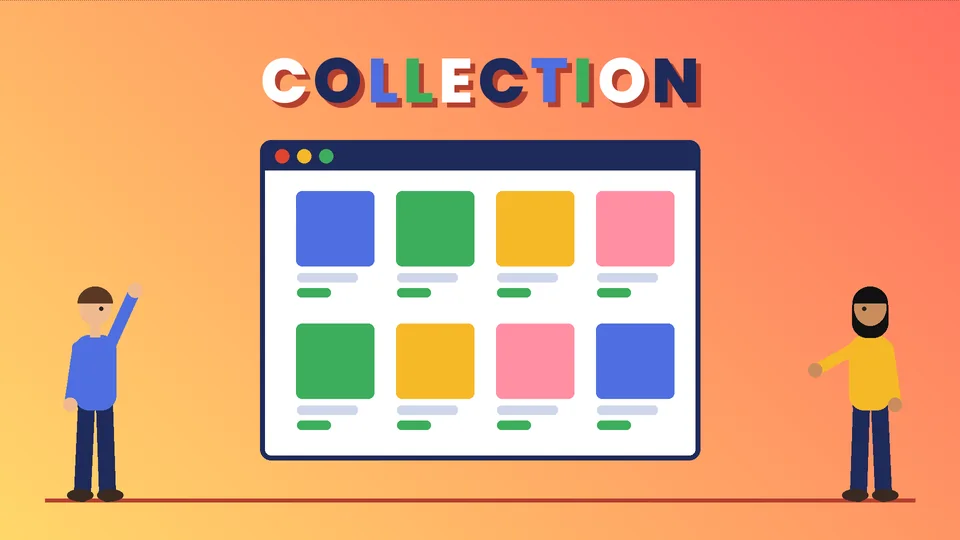
A collection page is the shelf of your Shopify store. It is where shoppers compare products side by side, narrow down by size, color or price, and decide which product page to open. On many stores it is also the page that ranks for broader searches, such as “linen dresses” or “espresso grinders”, because it covers a category rather than a single item.
A good collection page answers three questions quickly: am I in the right place, how do I find the product that suits me, and which one should I click? This guide covers how collections work in Shopify, the layout that works for most stores, filters and sorting, product cards, mobile design, SEO and the mistakes we see most often. Shopify features come from the Shopify Help Center and search guidance from Google Search Central, checked as of October 2026. Pros Inc designs Shopify stores for US businesses from our office in San Diego, and this is the checklist we use when we plan a collection template.
How collections work in Shopify
Shopify’s guide to collections describes collections as groups of products that make it easier to discover products by category, theme or customer intent. Common examples include products of one type, items on sale, a size or color, seasonal products, and nested collections built from other collections.
You can add products to a collection in several ways:
- Automatically, using inclusion conditions such as a tag, product type, price or metafield.
- Manually, by picking specific products or variants.
- With exclusions, removing products automatically by condition or by hand.
Shopify notes that a new collections model is replacing the older manual and smart collections, and stores that have it were converted automatically. Either way, each collection becomes a page on your online store with a gallery of its products. The exact layout depends on your theme and the collection template you assign, and you choose the default sort order for each collection.
Plan your collections around how customers shop, not how your warehouse is organized. A shopper looking for a gift thinks in occasions and budgets; a repeat buyer thinks in product types.
The layout that works for most stores
There is no single correct design, but this structure suits most small and mid-sized stores. Adjust it to your products.
1. A clear title and a short introduction
Use a plain collection name that matches what people search for. Add one or two sentences under the title that tell shoppers what is in the collection and who it suits. Keep longer helpful text, such as sizing advice or care notes, lower on the page so it does not push products down.
2. An optional banner, kept short
A collection image can set the mood, but a tall banner pushes products below the first screen, especially on phones. If you use one, keep it shallow or skip it on mobile.
3. Filters and sorting above the grid
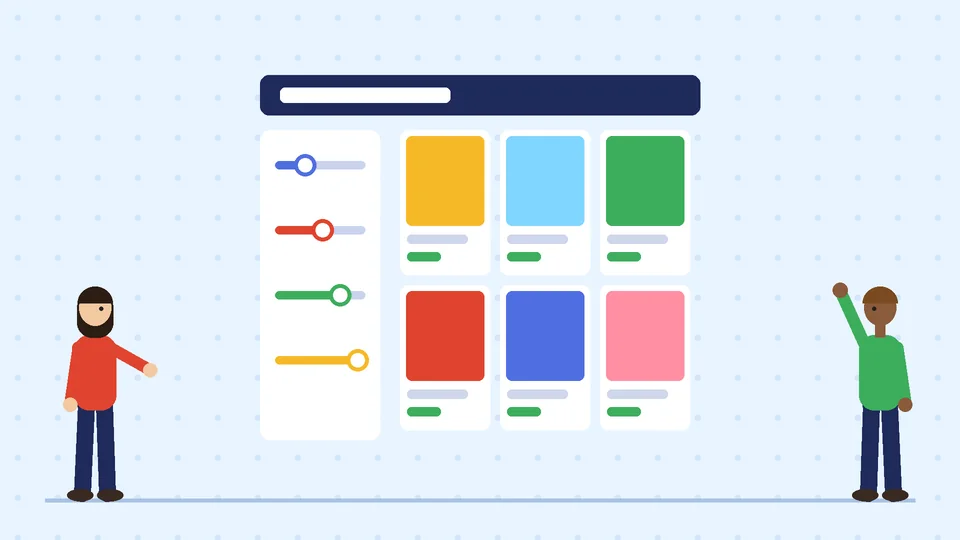
Put the filter and sort controls where shoppers expect them: in a sidebar on desktop and in a single “Filter and sort” button on mobile. Show the number of products and make active filters easy to see and remove.
4. The product grid
Use a consistent grid with images of the same shape and size. Most stores show three or four products per row on desktop and two on mobile. Consistency matters more than the exact number.
5. Pagination or “load more”
Long collections need a way to see more products. Whichever method your theme uses, make sure each page of results has its own URL that search engines can reach. More on that in the SEO section below.
6. Supporting content at the bottom
A short section after the grid can answer common questions, explain materials or sizing, and link to related collections or guides. Keep it useful for shoppers; it should not be a block of keywords.
Filters and sorting
Filters are the most useful tool on a large collection. In Shopify, storefront filters are set up in the Shopify Search & Discovery app. As of October 2026, that page explains:
- Standard filters for availability, category, price, product type, tags and vendor are available to all stores, and you can add custom filters based on product options, metafields and metaobjects.
- A store can have up to 25 filters in total.
- Collections that contain more than 5,000 products do not display filters, so Shopify suggests splitting very large collections into smaller ones.
- A filter can display up to 100 values on the storefront, and you can group similar values, such as several shades into one “Black” option.
- Choosing values from different filters narrows results, while choosing several values in the same filter usually widens them.
- Your theme must support filtering for the filters to appear.
Choose filters that match how people decide. Clothing shoppers filter by size, color and price. Furniture shoppers filter by dimensions, material and room. Start with four to six filters and add more only when customers need them.
For sorting, offer the options people use: featured, best selling, price low to high, price high to low and newest. Set the default sort for each collection on purpose. “Best selling” is a safe default for most categories; “newest” suits collections built around launches.
Design the product cards
The product card is the small block for each product in the grid. It should give shoppers enough to choose without opening every page:
- A clear product image on a consistent background, cropped the same way across the collection.
- A second image on hover on desktop, if your theme supports it, to show the product in use or from another angle.
- The product name, short enough to fit on one or two lines.
- The price, including the compare-at price if the item is on sale.
- Color swatches where color is the main choice.
- A small badge for genuinely useful labels such as “New” or “Sold out”, used sparingly.
Avoid cramming ratings, long descriptions and several badges onto every card. When everything is highlighted, nothing stands out. Our guide to Shopify product page design covers what belongs on the page shoppers reach after they click.
Design for mobile first
Most collection browsing happens on phones, so design and test the mobile version first:
- Show products on the first screen. The title, a short line of text and the first row of products should be visible without scrolling.
- Use a filter drawer. A single button that opens filters in a panel keeps the grid visible.
- Use two columns. Two products per row is usually the best balance between image size and browsing speed.
- Make tap targets large. Filter checkboxes, swatches and sort options should be easy to tap.
- Keep the page fast. Compressed images and fewer apps make long grids scroll smoothly. Our guide to Shopify speed optimization explains where to start.
Accessibility helps every shopper here too. Give product images useful alt text, make sure text on banners has enough contrast, and check that filters work with a keyboard. Our website accessibility guide covers the basic checks.

Collection page SEO
Collection pages often target your most valuable search terms, so a few technical details matter. Google’s guidance on pagination and incremental loading and on ecommerce URL structure gives clear rules:
- Give each page of results a unique URL and link pages in sequence with normal links. Google says its crawlers do not click buttons, so a “load more” button needs a crawlable fallback.
- Do not make page one the canonical URL for every page in a paginated sequence. Each page should have its own canonical URL.
- Avoid indexing filtered and sorted versions of the same list. Google suggests using noindex or robots.txt rules for unwanted filter and sort URLs.
- Avoid linking to empty pages. If a collection has no products, do not leave it in your menus.
Beyond the technical side, write a unique title and meta description for each collection, use the words people actually search for in the collection name, and add a short, genuinely helpful introduction. If you are working on search visibility more broadly, our search engine optimization page explains how we approach it.
Common collection page mistakes
- Tall banners that hide the products on the first screen.
- Too many filters, or filters with dozens of near-identical values.
- Inconsistent product images with different crops and backgrounds.
- Out-of-stock products sorted first, which makes the collection look empty.
- Collections that are too large to filter, or too small to be useful.
- No introduction, leaving shoppers and search engines unsure what the page covers.
- Copied manufacturer text used across many collection pages.
Frequently asked questions
What is a collection page in Shopify?
How many products should a Shopify collection have?
How do I add filters to a Shopify collection page?
Should collection pages have text?
How many products per row work best on a collection page?
Is infinite scroll or pagination better for SEO?
Work with Pros Inc
Pros Inc designs Shopify collection templates, filters and full store themes that help shoppers find the right product quickly. To talk about your store, contact us at 715 J St #200, San Diego, CA 92101, or call (858) 652-8920.